Install Ultralytics
Install Ultralytics in a clean environment, read the yolo checks report to confirm your device, and prove the setup with one prediction.
A training run that silently falls back to the CPU can take a day instead of an hour, and you won't notice until it's too late. A broken install surfaces the same way: halfway through a lesson, as an import error or a missing GPU.
Ten minutes here prevents both. You'll install the ultralytics package into a fresh environment, read the yolo checks report line by line, and run a first YOLO26 prediction that proves everything is connected.
Hands-on
Create a Clean Environment#
The ultralytics package installs on Python 3.8 and newer, but current PyTorch releases need Python 3.10 or newer, so start new projects on a current version such as 3.12. A fresh virtual environment keeps the package and its dependencies away from your other projects:
python -m venv .venv
source .venv/bin/activate        # Windows: .venv\Scripts\activate
python --version                 # 3.10 or newer
The Ultralytics quickstart covers the same setup with Conda or Docker if you prefer those.
Install the Right PyTorch, Then Ultralytics#
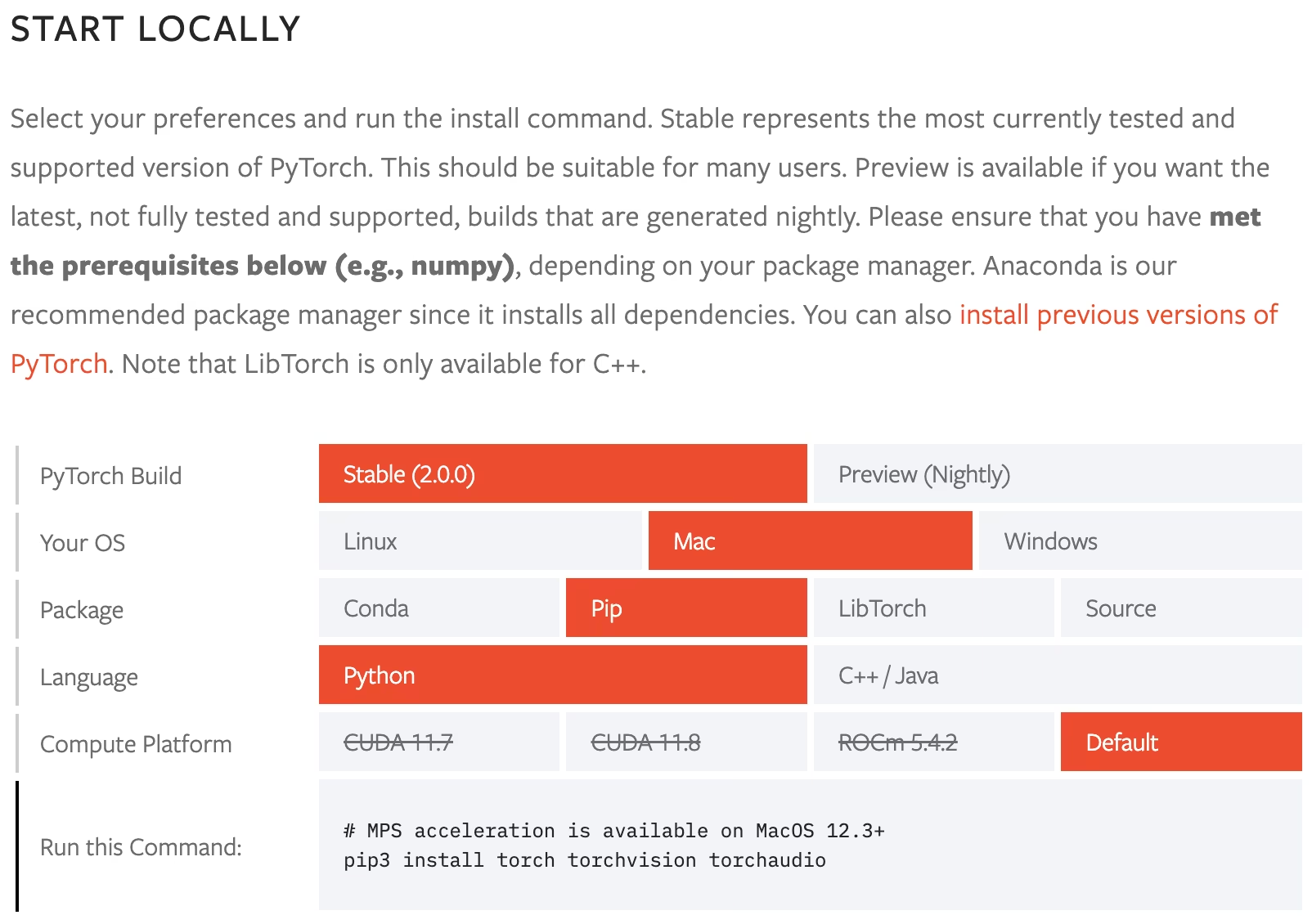
Ultralytics runs on PyTorch, and pip installs a default PyTorch build if none is present. That default is the main source of "why is it using my CPU?" problems, so pick the build first:
| Your machine | Do this first | Then |
|---|---|---|
| NVIDIA GPU | Install the CUDA build from the PyTorch selector that matches your driver | pip install ultralytics keeps it |
| Apple Silicon Mac | Nothing: the default build includes MPS | pip install ultralytics |
| CPU only | Nothing | pip install ultralytics |
pip install ultralyticsThat one command installs the ultralytics Python package, the yolo command-line tool, and dependencies such as OpenCV and NumPy.
Read the yolo checks Report#
yolo checks prints the versions and the hardware Ultralytics will use. Real output from a MacBook, trimmed:
Ultralytics 8.4.175 🚀 Python-3.12.12 torch-2.14.1 CPU (Apple M5 Pro)
Setup complete ✅ (18 CPUs, 48.0 GB RAM, 594.4/926.3 GB disk)

OS                     macOS-27.0.1-arm64-arm-64bit
Python                 3.12.12
Install                pip
GPU                    None
Line by line:
Ultralytics 8.4.175 ... torch-2.14.1: the package and PyTorch versions. Quote these in any bug report.CPU (Apple M5 Pro): the device used when you don't passdevice. This is the line that matters.Setup complete ✅: the install itself is healthy.GPU None: PyTorch sees no CUDA GPU. Expected on a Mac; a problem on an NVIDIA machine.
Act on the device in line 1:
You don't need a GPU for this course: every example is sized to finish in minutes on a laptop CPU. A GPU matters once you train at full size, where it is often 10× faster or more.
Prove It With One Prediction#
A prediction exercises the whole stack: it downloads the YOLO26 nano weights, fetches an image, runs the model, and writes an annotated copy.
yolo predict model=yolo26n.pt source=https://ultralytics.com/images/bus.jpgimage 1/1 bus.jpg: 640x480 4 persons, 1 bus, 20.1ms
Speed: 0.7ms preprocess, 20.1ms inference, 0.5ms postprocess per image at shape (1, 3, 640, 480)
Results saved to runs/detect/predict640x480 4 persons, 1 bus: the image was resized to 640×480 for the model, which found five objects.20.1ms: inference time on this CPU. Note yours; it's your first speed baseline.runs/detect/predict: where the annotatedbus.jpglanded. Run the command again and you getpredict-2: Ultralytics never overwrites a previous run.
Every default in that command — confidence, image size, save location — is listed in the configuration reference.
Fix the Common Problems#
Symptom: yolo checks shows CPU and GPU None on a machine with an NVIDIA GPU, and training is painfully slow. Cause: pip installed a CPU-only PyTorch. Fix: uninstall torch and torchvision, install the CUDA build from the PyTorch selector, and rerun yolo checks until the first line says CUDA:0.
Cause: the virtual environment isn't active in this terminal, so the yolo script isn't on your PATH. Fix: run source .venv/bin/activate (or the Windows equivalent) in every new terminal before using yolo.
| Symptom | Cause | Fix |
|---|---|---|
requirements: ... not found, attempting AutoUpdate then No module named pip | Environment created without pip, so Ultralytics can't auto-install an extra package | Install the named package with your environment's tool, e.g. uv pip install lap |
| Weight or dataset downloads time out | Network blocks GitHub release assets | Download yolo26n.pt once elsewhere and pass its local path |
PermissionError writing runs/ | Working directory is read-only | cd into a writable project folder |
For anything else, the common issues guide collects known fixes, and closed issues in the Ultralytics repository usually have the answer — search them before opening a new one.
Show solution
python -m venv .venv
source .venv/bin/activate
# NVIDIA only: install the CUDA PyTorch build from pytorch.org first
pip install ultralytics
yolo checks
yolo predict model=yolo26n.pt source=https://ultralytics.com/images/bus.jpg
Versions: Ultralytics 8.4.175, torch 2.14.1
Device: CPU (Apple M5 Pro); use device=mps for the Apple GPU
bus.jpg: 20.1 ms inference at 640x480On a laptop CPU, expect roughly 10–60 ms for bus.jpg; on a recent NVIDIA GPU, a few milliseconds. If yolo checks names the wrong device, fix PyTorch before moving on.