Counting, Heatmaps, and Speed Estimation
Build line counters, zone occupancy, heatmaps, and speed estimates on top of tracking, and calibrate them honestly.
Most production vision systems are not model.predict(). They are a tracker plus a little geometry: a line that objects cross, a zone they occupy, a scale that turns pixels into meters. The geometry is where results go wrong: a speed estimator on the demo clip in this lesson reports walking pedestrians at 1 km/h, a quarter of their real pace, because of one guessed number.
Hands-on
Tracking Plus Geometry#
Every solution class in ultralytics.solutions runs Track mode internally, then applies its own geometry to the track history. Install the extras once with pip install "ultralytics[solutions]".
| Class | Geometry | Key results |
|---|---|---|
ObjectCounter | 2 points = line, 3+ points = polygon | in_count, out_count, classwise_count |
RegionCounter | One or more named polygons | region_counts |
Heatmap | Accumulates box areas over time | plot_im (plus counts if given a region) |
SpeedEstimator | Track displacement × meter_per_pixel | speed_dict (km/h per track ID) |
Solutions use tracker="tracktrack.yaml" by default; pass the tracker you validated in the previous lesson.
Count Line Crossings#
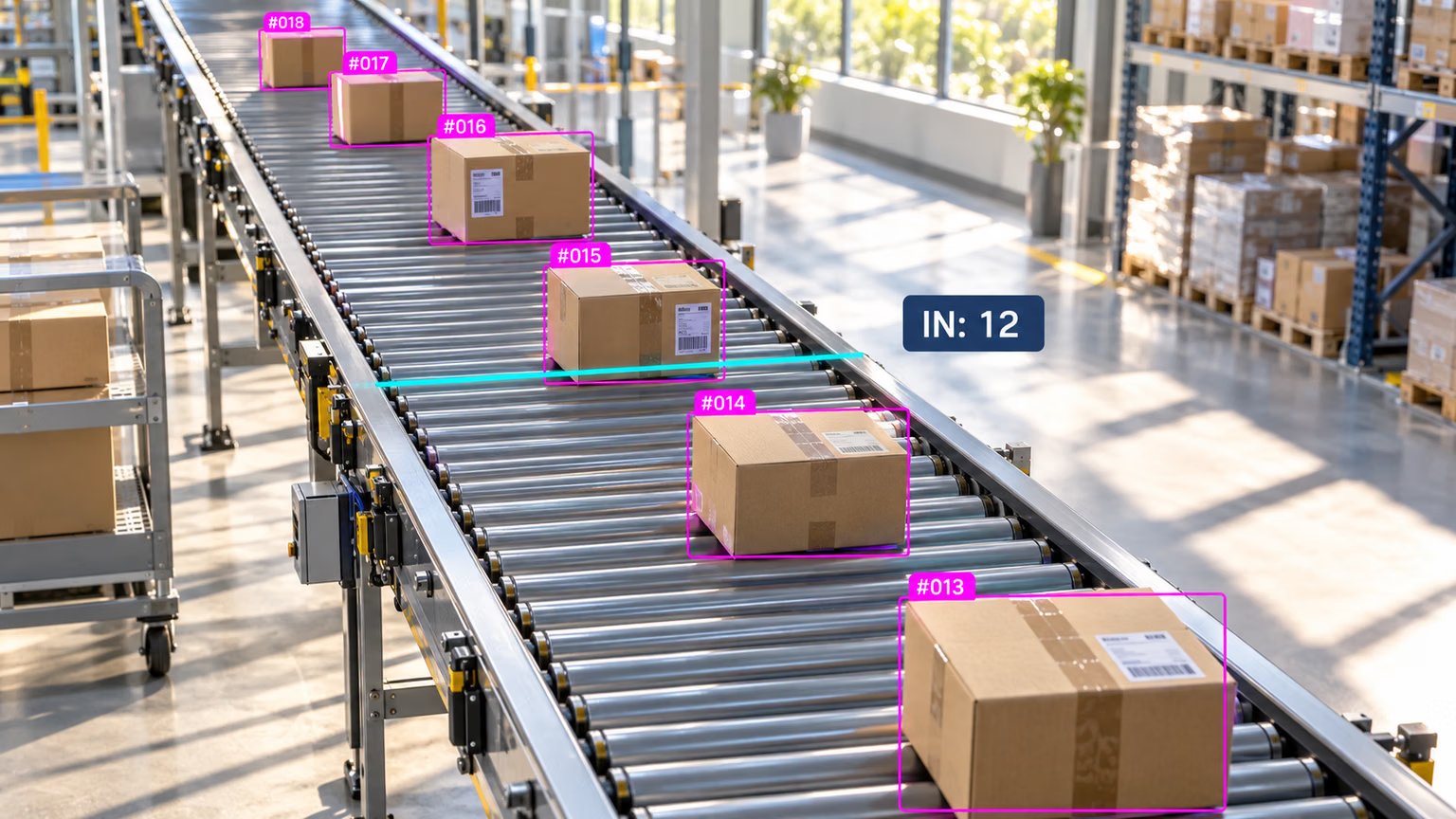
A counting line is a segment. An object is counted once, when its box center crosses the line between two frames, and the side it came from decides IN or OUT. That is why the conveyor above needs tracking: without the ID, box #015 would be counted again on every frame it touches the line.
import cv2

from ultralytics import solutions
from ultralytics.utils.downloads import safe_download

video = safe_download("https://github.com/ultralytics/assets/releases/download/v0.0.0/solutions_ci_demo.mp4")
cap = cv2.VideoCapture(str(video))  # 640x360, 30 FPS, 62 frames
w, h, fps = (int(cap.get(p)) for p in (cv2.CAP_PROP_FRAME_WIDTH, cv2.CAP_PROP_FRAME_HEIGHT, cv2.CAP_PROP_FPS))
writer = cv2.VideoWriter("counted.mp4", cv2.VideoWriter_fourcc(*"mp4v"), fps, (w, h))

counter = solutions.ObjectCounter(
    model="yolo26n.pt",
    region=[(0, 180), (640, 180)],  # two points: a horizontal line across the middle of the frame
    classes=[0],  # person
    tracker="bytetrack.yaml",
    verbose=False,
)

while True:
    ok, frame = cap.read()
    if not ok:
        break
    results = counter(frame)  # detect + track + count in one call
    writer.write(results.plot_im)

cap.release()
writer.release()
print(f"in={results.in_count} out={results.out_count} classwise={results.classwise_count}")
in=2 out=2 classwise={'person': {'IN': 2, 'OUT': 2}}Four people crossed the middle of the plaza in the clip's two seconds: two in each direction. With the default TrackTrack config the same script reports in=0 out=1, because fewer tracks means fewer crossings. Open counted.mp4 and check each crossing by eye before you trust a number.
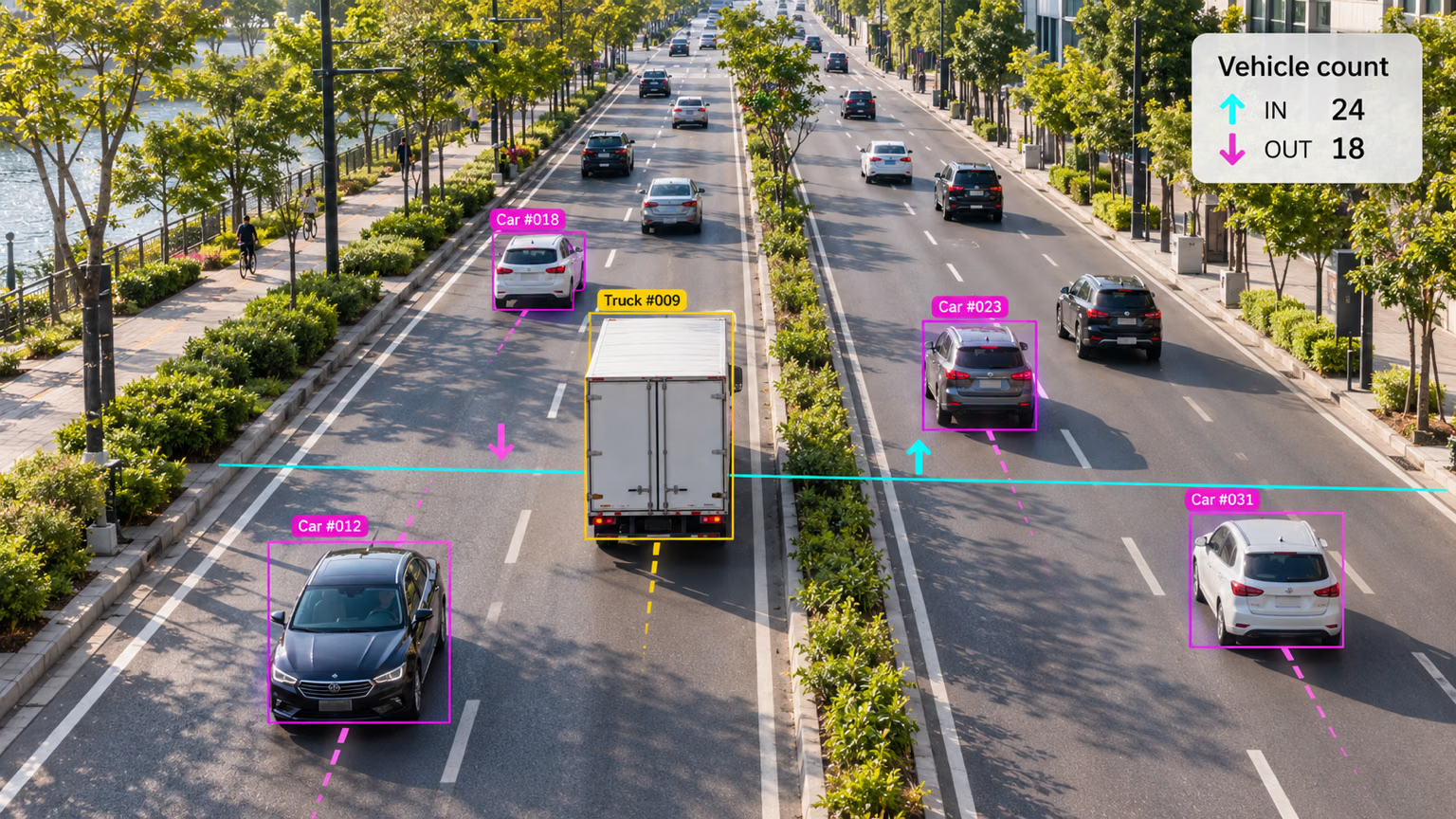
On a road, the same line splits traffic by direction: vehicles crossing upward count as IN, downward as OUT. Place the line where objects cross it cleanly and at a right angle, away from frame edges, occluders, and the far end of the road where boxes are tiny.
Count Occupancy in a Zone#
A polygon zone answers "how many objects are inside right now?" The region counting guide ships a ready-made RegionCounter; underneath, it is one point-in-polygon test per tracked box:
from shapely.geometry import Point, Polygon

from ultralytics import YOLO

model = YOLO("yolo26n.pt")
video = "https://github.com/ultralytics/assets/releases/download/v0.0.0/solutions_ci_demo.mp4"
zone = Polygon([(100, 100), (500, 100), (500, 300), (100, 300)])  # pixel coordinates

peak = 0
for r in model.track(video, stream=True, tracker="bytetrack.yaml", classes=[0], verbose=False):
    if not r.boxes.is_track:
        continue
    inside = sum(zone.contains(Point(cx, cy)) for cx, cy in r.boxes.xywh[:, :2].tolist())
    peak = max(peak, inside)
print(f"peak occupancy: {peak} people inside the zone")
peak occupancy: 10 people inside the zonexywh[:, :2] is each box's center. For queues and dwell time, keep a per-ID timestamp of when it entered the zone.
Estimate Speed#
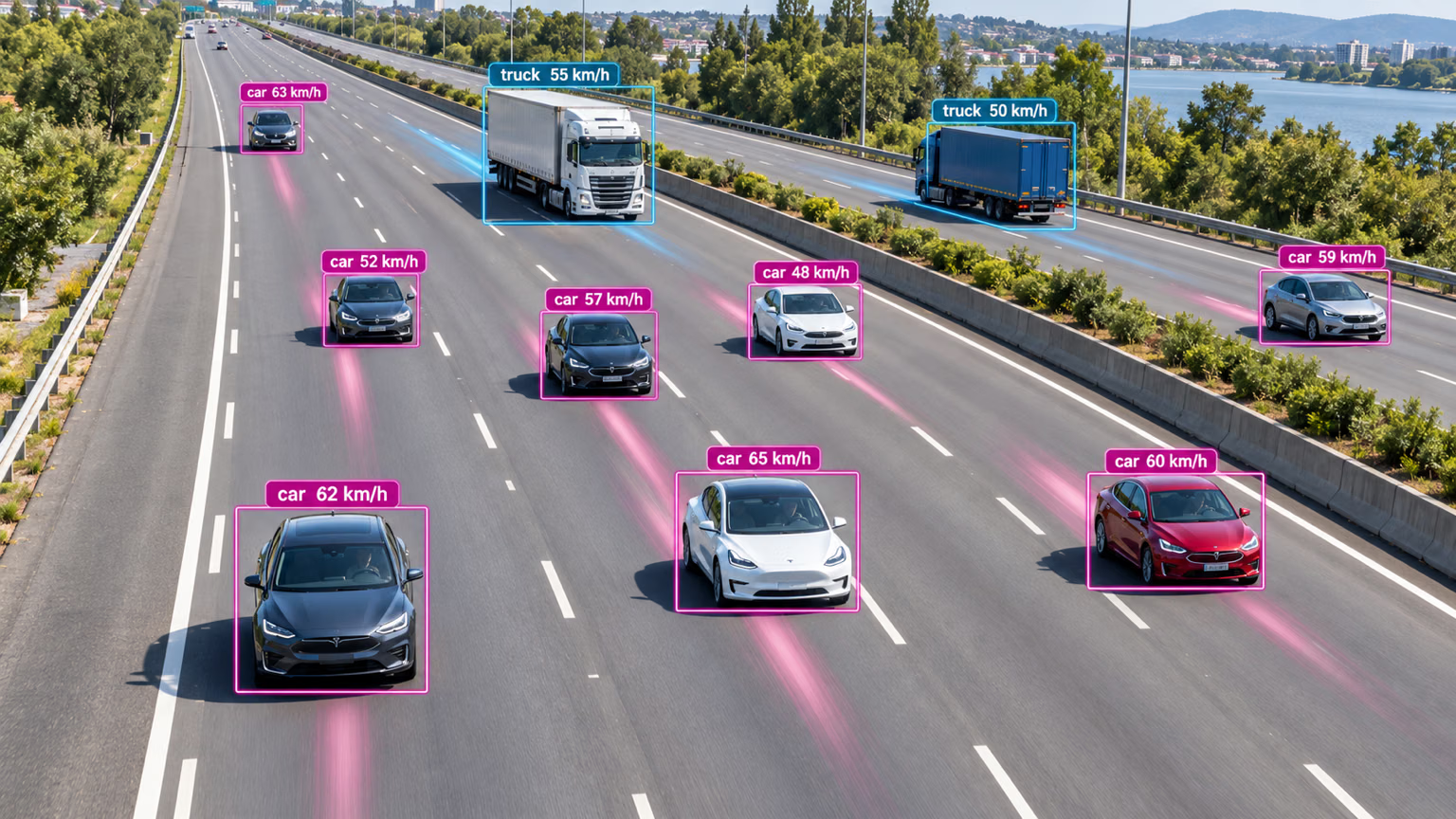
Each label above comes from the trail behind the vehicle: the distance its track moved in pixels over a known number of frames. Speed = pixel distance × meters per pixel ÷ elapsed time. Two inputs decide whether the answer is right:
- Meters per pixel. Measure a known length in the scene (a floor tile, a lane marking, a parking space) at the depth where objects move. For angled cameras, map the ground plane with a four-point homography instead.
- The real capture rate. Speed scales with FPS; footage re-encoded or slowed down scales every speed by the same factor.
This loop measures from the bottom-center of each box (where the object meets the ground) and averages each track over 10 frames:
from collections import defaultdict, deque

from ultralytics import YOLO

model = YOLO("yolo26n.pt")
video = "https://github.com/ultralytics/assets/releases/download/v0.0.0/solutions_ci_demo.mp4"
fps = 30  # the real capture rate, not the playback rate
pixels_per_meter = 33  # example: a 1.2 m floor feature spans 40 px; measure your own scene

prev = {}  # track ID -> last bottom-center point
window = defaultdict(lambda: deque(maxlen=10))  # about 0.3 s of speeds per track at 30 FPS
for r in model.track(video, stream=True, tracker="bytetrack.yaml", classes=[0], verbose=False):
    if not r.boxes.is_track:
        continue
    for (x1, y1, x2, y2), tid in zip(r.boxes.xyxy.tolist(), r.boxes.id.int().tolist()):
        cx, cy = (x1 + x2) / 2, y2  # bottom-center sits on the ground plane
        if tid in prev:
            px, py = prev[tid]
            meters = ((cx - px) ** 2 + (cy - py) ** 2) ** 0.5 / pixels_per_meter
            window[tid].append(meters * fps * 3.6)  # km/h
        prev[tid] = (cx, cy)

smoothed = sorted(sum(s) / len(s) for s in window.values() if len(s) == s.maxlen)
print(f"{len(smoothed)} tracks; median {smoothed[len(smoothed) // 2]:.1f} km/h")
29 tracks; median 2.1 km/hPeople walk at 4–5 km/h, so 2.1 km/h says the example scale is wrong for this scene: the pixels_per_meter value was not measured here. That sanity check, comparing the median against a speed you know, is the habit that matters.
solutions.SpeedEstimator packages the same idea for production: it measures each track's box center over max_hist frames, converts with meter_per_pixel, and locks one speed per ID (capped at max_speed):
import cv2

from ultralytics import solutions
from ultralytics.utils.downloads import safe_download

video = safe_download("https://github.com/ultralytics/assets/releases/download/v0.0.0/solutions_ci_demo.mp4")
cap = cv2.VideoCapture(str(video))
speed = solutions.SpeedEstimator(
    model="yolo26n.pt",
    classes=[0],
    tracker="bytetrack.yaml",
    fps=30,  # the real capture rate, not the playback rate
    meter_per_pixel=0.03,  # a guess: a ~0.45 m shoulder width spans ~15 px here
    max_hist=15,  # 0.5 s of history before a speed is locked
    verbose=False,
)

speeds = {}
while True:
    ok, frame = cap.read()
    if not ok:
        break
    speeds.update(speed(frame).speed_dict)  # {track_id: km/h} once locked
cap.release()

kmh = sorted(speeds.values())
print(f"{len(kmh)} tracks; median {kmh[len(kmh) // 2]} km/h, range {kmh[0]}-{kmh[-1]} km/h")
25 tracks; median 1 km/h, range 0-4 km/hOff by about 4× again, for the same reason: a scale guessed from body size. The box center is fine for top-down cameras like this one; on angled cameras prefer the bottom-center loop or a homography.
Accumulate a Heatmap#
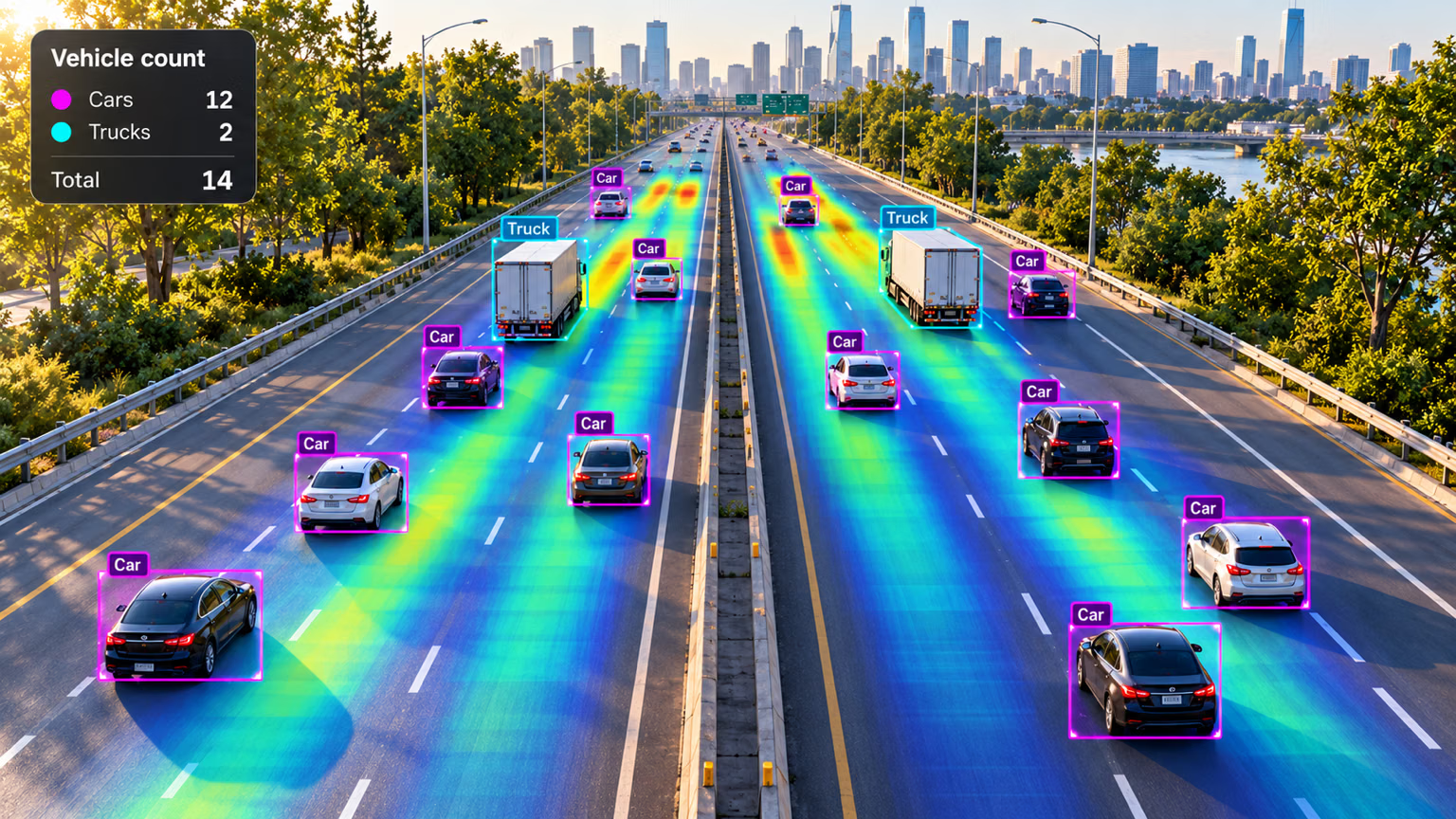
A heatmap adds heat under every tracked box on every frame, so lanes or aisles that carry the most traffic glow brightest. Give it a region and it counts objects too, as in the highway above:
import cv2

from ultralytics import solutions
from ultralytics.utils.downloads import safe_download

video = safe_download("https://github.com/ultralytics/assets/releases/download/v0.0.0/solutions_ci_demo.mp4")
cap = cv2.VideoCapture(str(video))
heatmap = solutions.Heatmap(
    model="yolo26n.pt",
    classes=[0],
    tracker="bytetrack.yaml",
    colormap=cv2.COLORMAP_PARULA,
    verbose=False,
)

while True:
    ok, frame = cap.read()
    if not ok:
        break
    results = heatmap(frame)
cap.release()
cv2.imwrite("heatmap.jpg", results.plot_im)  # last frame with the accumulated heat overlay
Over hours of footage, the same overlay shows congested aisles, unused zones, and the paths people actually take. Workouts monitoring and a Streamlit live inference UI are built from the same blocks.
Pitfalls#
Symptom: a counter pipeline runs at half the expected FPS. Fix: ObjectCounter, Heatmap, and SpeedEstimator detect and track internally. Don't wrap them in your own model.track() loop and pass r.orig_img; feed them raw frames.
Symptom: pedestrians at 1 km/h or cars at 300 km/h. Fix: measure meter_per_pixel from a known length where objects move, confirm the camera's real FPS, and check the median against a known speed (walking pace or the posted limit).
The geometric center rises as an object approaches the camera and its box grows. The bottom-center approximates where the object touches the ground, so distances measured from it track real movement far more closely.
Show solution
Calibrate from something you can measure in the frame, then sanity-check:
# Two points along a floor feature whose real length you know (read them off a saved frame)
(x1, y1), (x2, y2) = (100, 300), (140, 300)
real_length_m = 1.2  # e.g. measured tile width or lane marking

pixels = ((x2 - x1) ** 2 + (y2 - y1) ** 2) ** 0.5
print(f"pixels_per_meter = {pixels / real_length_m:.1f}, meter_per_pixel = {real_length_m / pixels:.4f}")
pixels_per_meter = 33.3, meter_per_pixel = 0.0300Put pixels_per_meter in speed_loop.py (or meter_per_pixel in SpeedEstimator) and rerun. If walkers still read far from 4–5 km/h, the scale was measured at the wrong depth or the FPS is wrong: a clip slowed to half speed halves every reading. On the demo clip, both scripts used the same guessed scale (0.03 m per pixel is 33 pixels per meter) and read 2–4× low, so either a pixel here covers more ground than the guess or the clip's real capture rate is not 30 FPS. Only a measurement in the scene settles which.